
To initiate a synchronization locally or remotely (if enabled) , you could run the following command for example:
Invoke-Command -ComputerName **DirSync-Server.domain.com** -ScriptBlock {& Import-Module ADSync;Start-ADSyncSyncCycle}Update - July 7th 2015 - For those who have installed the latest AADSync - Azure Active Directory Sync or AD Connect - Azure Active Directory Connect
There has been another change to the module name, it is now ADSync. and the great news is that forcing replication will no longer be a PowerShell cmdlet.
To initiate a synchronization locally or remotely (if enabled) , you could run the following command for example:
Invoke-Command -ComputerName **DirSync-Server.domain.com** -ScriptBlock {& "C:\Program Files\Microsoft Azure AD Sync\Bin\DirectorySyncClientCmd.exe"}If you’re looking also to force a full password sync to Azure AD , visit this page - How to Use PowerShell to Trigger a Full Password Sync in Azure AD Sync
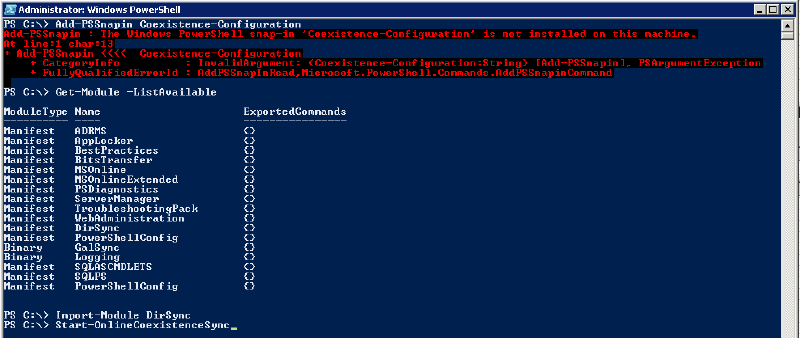
Just noticed now that the new build of Windows Azure Directory Synchronization Tool, is missing the DirSyncConfigShell.psc1 file. Moreover, the Coexistence-Configuration PSSnapin is also gone. Trying to add the pssnapin would generate the error - The Windows PowerShell snap-in Coexistence-Configuration is not installed on this machine.
So if you’ve trying to use the known way to force a synchronization with DirSync, use these PowerShell commands to achieve what you were used to. Import-Module DirSync Start-OnlineCoexistenceSync
enjoy !